![White Logo with transparent background.png]](https://www.transpoco.com/hs-fs/hubfs/White%20Logo%20with%20transparent%20background.png?height=40&name=White%20Logo%20with%20transparent%20background.png)
View the audit log table
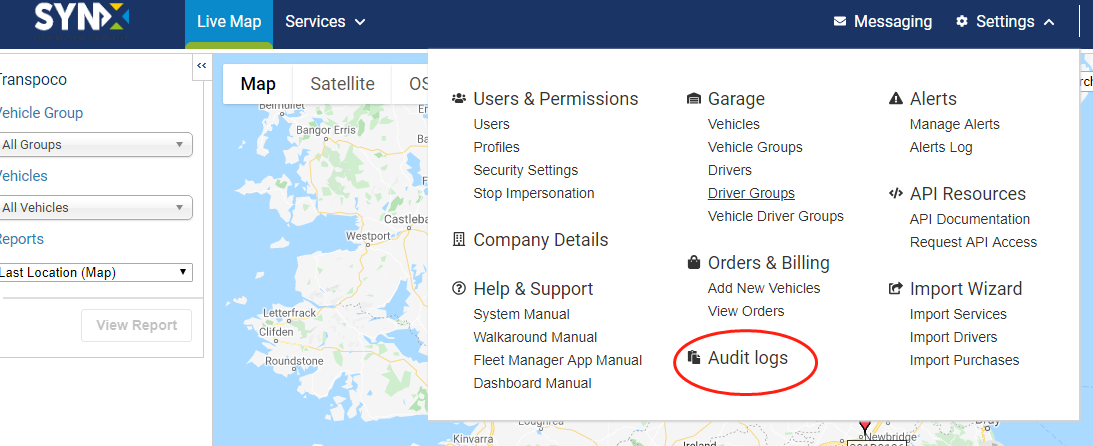
- Click on Settings in the menu header.
- Click on Audit Logs in the drop-down menu.
The audit log table opens, usually in descending date order (default).
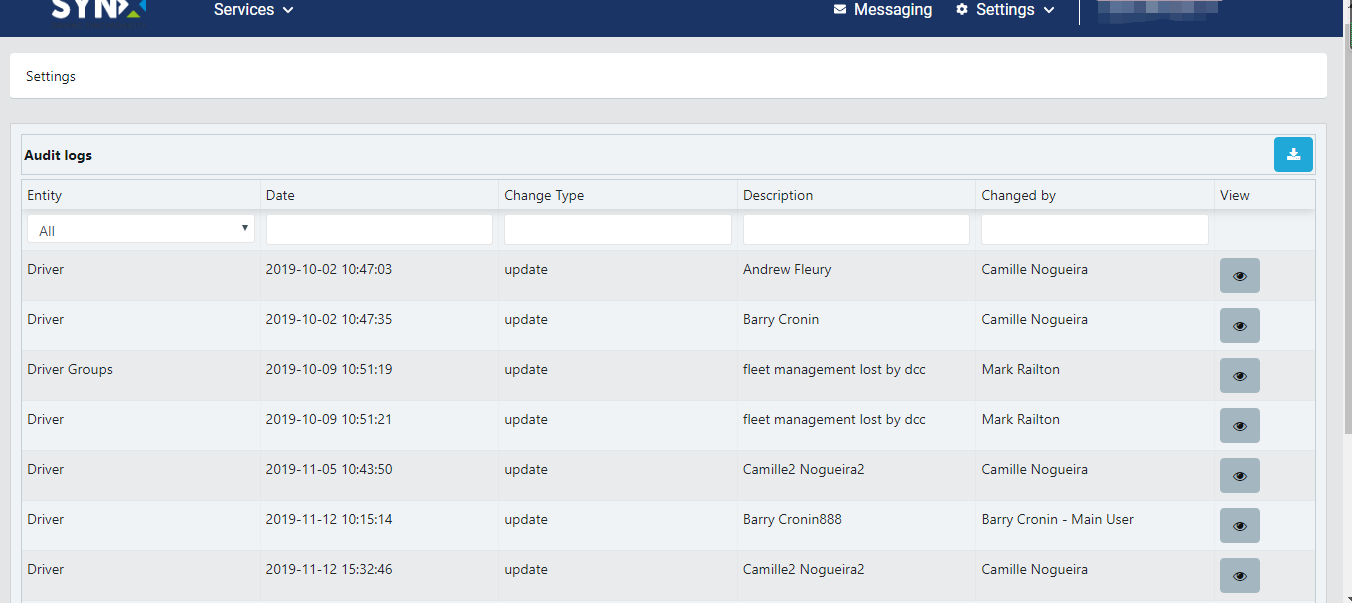
The standard information displayed in the log table is:
- Entity: The area of the system where the change occurred
- Date: Date & time the change was made
- Change Type: E.g. delete, update
- Description: Free text
- Changed By: Who made the change

- At the bottom of the table, choose how many rows to show from the drop-down menu (min. 5; max. 100).
- Scroll through the pages by clicking on Previous and Next, or to jump to a specific page, use the up/down arrows in the page number box and press Return on your keyboard.
- To sort the list by different columns in ascending or descending order, click on the relevant column header once or twice.
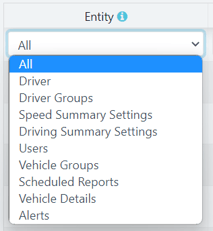
- To filter the data by ‘Entity’, click on the down arrow in the box and select from the drop-down list.
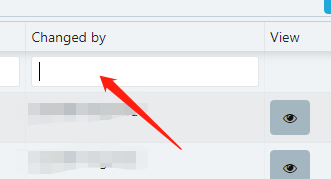
- To filter the data by the other criteria, type the relevant search box under the column heading.
Export the audit log table
- Open the audit log table by following the instructions to View the audit log table.
- Click on theblue export icon.
- The system will ask how you want to export the data.
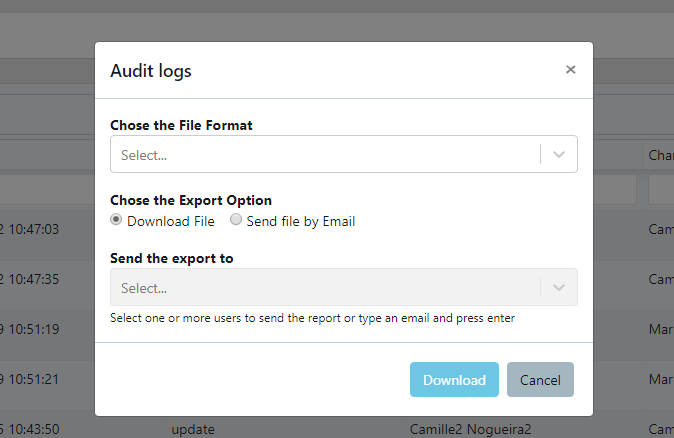
- Choose the File Format by selecting either ‘CSV’ or ‘Excel’ from the drop-down menu.
- Choose the Export Option by selecting either ‘Download File’ or ‘Send File by Email’.
- Click Download button once you are ready.
- Click on Save after you have chosen a location on your system.
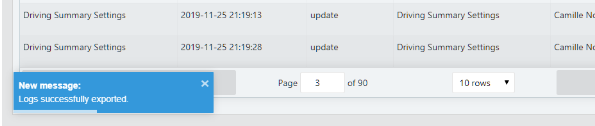
The system will briefly display a confirmation message in the bottom left of the window.
View an individual audit log
- Click on the View icon for the log you wish to open.
-
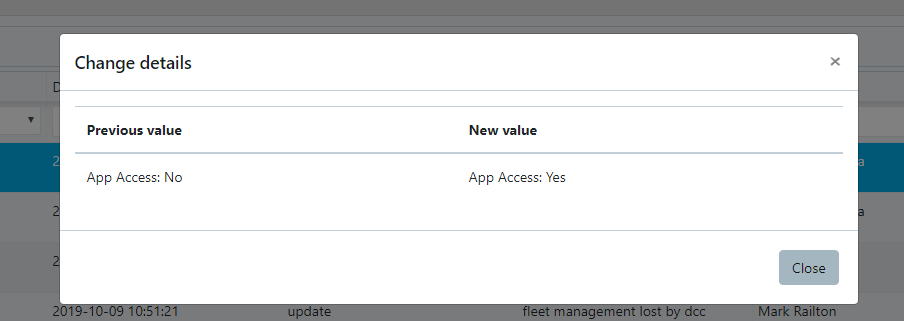
The log will show the previous values that have been changed and their new values.
- Click on Close.