![White Logo with transparent background.png]](https://www.transpoco.com/hs-fs/hubfs/White%20Logo%20with%20transparent%20background.png?height=40&name=White%20Logo%20with%20transparent%20background.png)
- Log in to your Transpoco Synx account.
- Click on Services > Live Map > Fleet Summary.
- In the default report, it contains 11 columns as shown below:
- Click on the “Export” on the top right corner of the page.
.
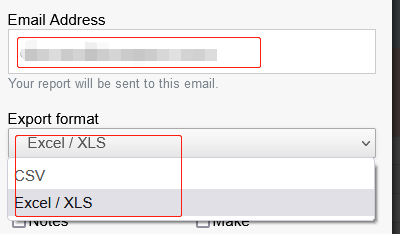
- Then type the email address and choose a suitable format of the report.
- Then you can add preferred extra columns from the options below to your export.
- Then choose an export option.
- Click on the “Export” button
.
- You will receive your report via email or downloaded locally, depending on your choice in step 7.