![White Logo with transparent background.png]](https://www.transpoco.com/hs-fs/hubfs/White%20Logo%20with%20transparent%20background.png?height=40&name=White%20Logo%20with%20transparent%20background.png)
As an example, the following shows how to set up an alert for when any defects are found during HGV walkaround checks.
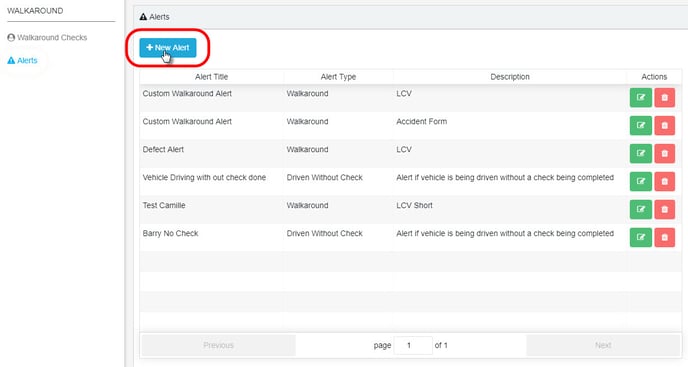
Go to Services Menu > Walkaround > Alerts >
On the Alerts page click the +New Alert button.
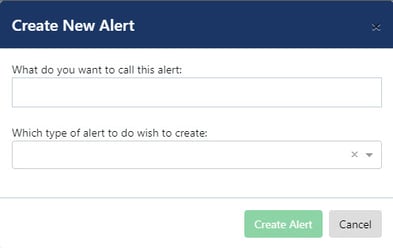
Type in a name for the new alert.
Select ‘Walkaround’ from the drop-down list of Alert Types.
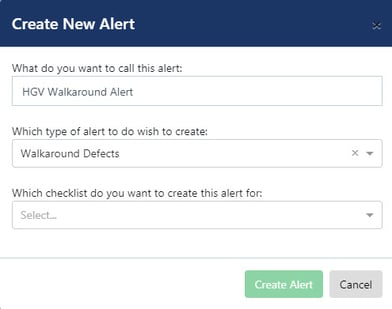
Next, click on the drop-down box to select which checklist the alert is for. In our example, this is ‘HGV’.
Then select ‘All Defects’ from the defects drop-down list.
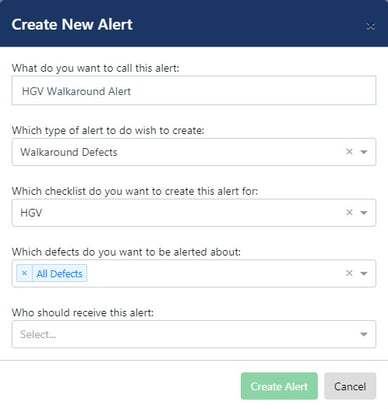
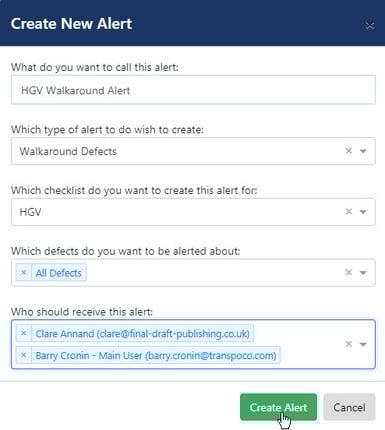
Finally, select a recipient of the alert from the drop-down list of users.
If required, click on more names to add further recipients; to remove them if added in error, click on the x next to their name.
Click on Create Alert.
When the alert has been successfully created, the system will show a green confirmation message in the bottom left corner of the screen.
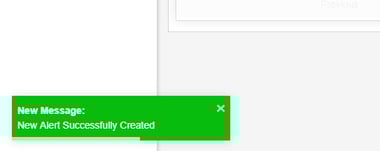
The message will fade after a few seconds, or click the x to close it immediately.
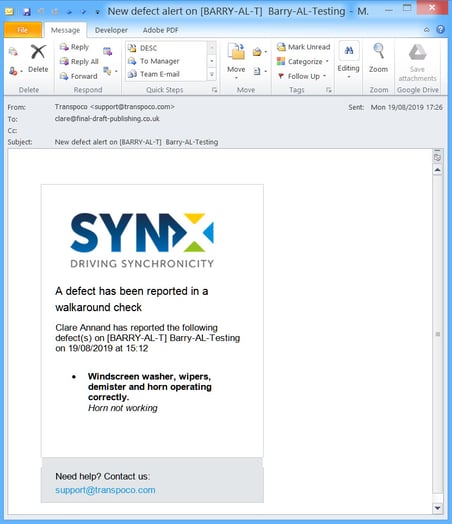
When the alert has been triggered, an email will be sent to the selected recipients.