![White Logo with transparent background.png]](https://www.transpoco.com/hs-fs/hubfs/White%20Logo%20with%20transparent%20background.png?height=40&name=White%20Logo%20with%20transparent%20background.png)
Before you can complete walkaround checks, you need to activate your Transpoco Driver account. This takes about five minutes and only needs to be done once.
What you'll need- Access to the email inbox your fleet manager registered for you
- A smartphone (Android or iOS)
Step 1 – Open the welcome email
Your fleet manager will trigger a welcome email from the Transpoco system. Look in your inbox for:
- From: Transpoco (support@transpoco.com)
- Subject: Welcome to Transpoco Driver Walkaround App
If you can't see it, check your junk or spam folder.

Step 2 – Confirm your account
Open the email and click the green Confirm your account button.
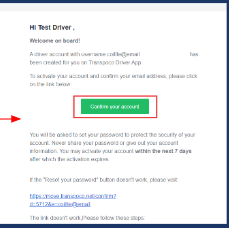
The activation link is valid for 7 days. If it has expired, ask your fleet manager to resend the welcome email.
Step 3 – Set your password
You'll be taken to a Set Password page. Your password must:
- Be at least 8 characters
- Contain at least one number
- Not contain your username
- Match in both the Password and Confirm Password fields
Enter your password twice and tap Set Password. Never share your password with anyone.
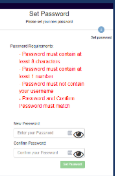
The Set Password screen
Step 4 – Download the Transpoco Driver app
Install Transpoco Driver from the Google Play Store (Android) or Apple App Store (iOS). Search for "Transpoco Driver" and look for the steering-wheel icon.
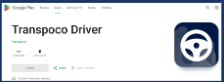
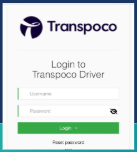
Open the app and enter:
- Username: your email address
- Password: the password you set in Step 3
Tap Login. You're now ready to start your walkaround checks.
- Didn't receive the email? Check spam, then confirm with your fleet manager that the correct email address is on your driver record.
- Confirm link doesn't work or has expired? Ask your fleet manager to resend the welcome email.
- Forgotten your password? Tap Reset password on the app login screen.
- Still stuck? Contact support@transpoco.com.