![White Logo with transparent background.png]](https://www.transpoco.com/hs-fs/hubfs/White%20Logo%20with%20transparent%20background.png?height=40&name=White%20Logo%20with%20transparent%20background.png)
The Driving Summary displays data to show the driving behaviour of the drivers and vehicles in your fleet. The report displays the detection of defined events. The default events are; speeding, harsh braking, rapid acceleration and harsh cornering.
The outcome is a report which will rank the drivers (and vehicles) in your fleet from worst to best.
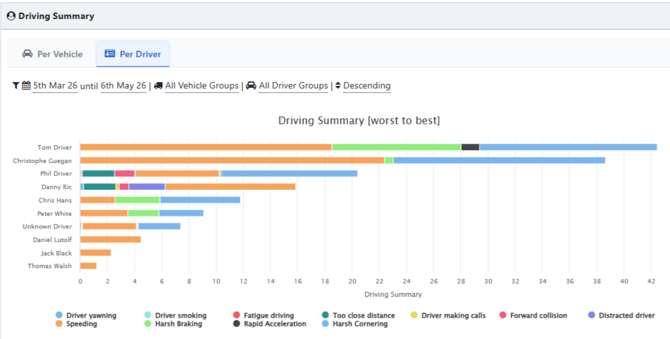
If you are using an AI forward facing camera and/or an AI driver facing camera from Transpoco, your Driving Summary will also include additional events like driver yawning or forward collision. We will display the full list of AI camera events below.
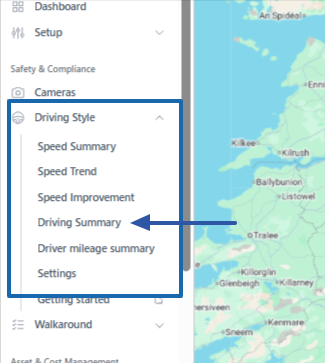
To find the Driving Summary go to Navigation menu > Safety & Compliance > Driving Style > Driving Summary
Before we discuss the Driving Summary report let's start by explaining how we identify the default events of speeding, harsh braking, rapid acceleration and harsh cornering.
Rapid Acceleration - Events are set to trigger if the next event is an increase of 21.6km/h in 1 second.
Harsh Braking - Events are set to trigger if the next event is a decrease of 21.6km/h in 1 second.
Harsh Cornering- Events are set to trigger if the next event is an increase of 21.6km/h in 1 second and a change of direction.
Speeding- Each location update from a tracker includes the speed of the vehicle. We check the speed against the speed limit of the road (Transpoco has a database of road speed limits). If the speed indicated by the tracker exceeds the road speed limit we treat this as a speeding event.
There is also a separate report for speeding - see the Speed Summary in your account.
The Driving Summary is available to view:
-
Per Vehicle
-
Per Driver
How to read the Driving Summary
In this example below, we will look at the Driving Summary per Driver. We will only discuss the Driving Summary using the 4 default events (speeding, harsh braking, rapid acceleration and harsh cornering) which apply to all customers.
The GPS tracker in a vehicle will provide a location update on average every 10-15 seconds. Each update provides a packet of information including the speed and location. If a vehicle brakes harshly, corners harshly or accelerates rapidly this will also trigger an update from the tracker. The Driving Summary will combine the percentage of speeding events and the unique events detected for rapid acceleration, harsh cornering and Harsh Braking.
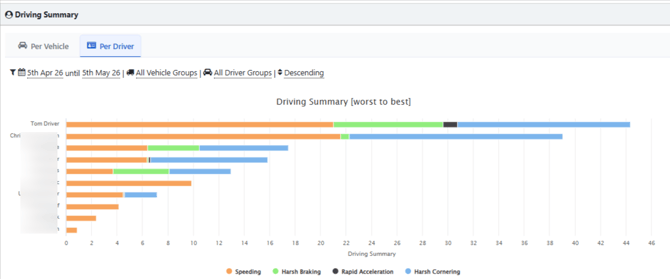
The Driving Summary ranks drivers or vehicles from worst to best. There are 10 drivers or vehicles per page in the table view.
In the example below, during the last 30 days the driver 'Tom Driver' is the worst driver from all of the drivers included in this report.
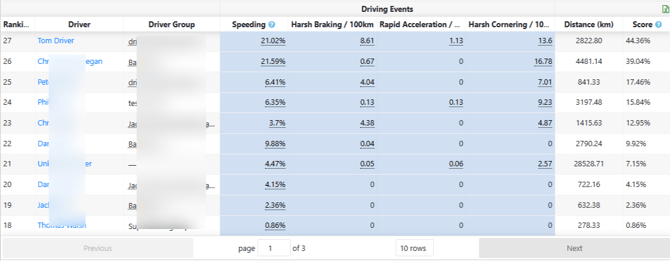
In the bottom half of the report you can see the values for each event including the score ranks the drivers. Each driver starts with a score of 100% and the score is reduced by the values from each event to produce a Score. The Score for 'Tom Driver' during the time period is 44.36%.
To provide context to the score of each driver, we include the distance travelled by each driver during the selected time period in the Distance column.
Note: In order to show data for your drivers we will need to track the driving behaviour of your drivers. There are 2 options:
1. We can track the driving behaviour of your vehicles through a driver ID reader installed into each vehicle. Each driver will be assigned a unique key fob or RFID card and will swipe their fob/RFID over a reader located on the dashboard at the start of each journey.
2.The customer can manually assign a registration to a driver in their Driver profile. Go Navigation menu > Visibility > Setup > Drivers. It is possible you will have to create a profile for each driver. This option is ideal if your drivers drive the same vehicle each day. All journeys and events recorded during the journeys will be assigned to the driver.
Filter Options
1. Date Period
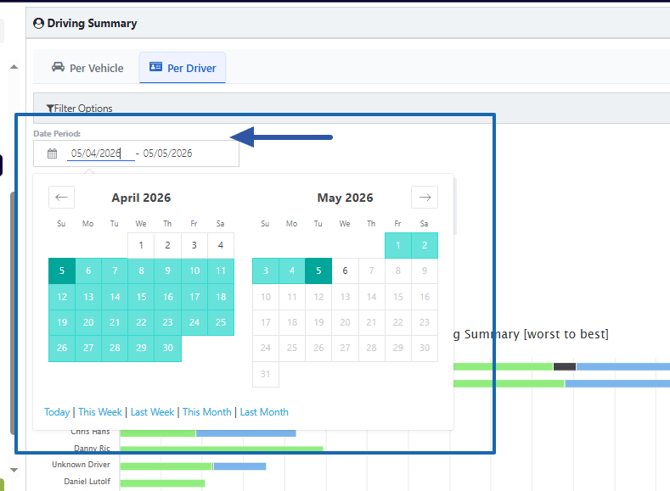
The default period for the Driving Summary is the last 30 days. Click on the date range to open a calendar. You can select a customised time period or choose 1 of the pre-set time periods (This week, last week, this month, etc.)
2. Driver Groups
You can filter the report by a group of drivers. Select a drivers group from 1 of the available drivers group in your Transpoco account. This option will allow you to compare drivers in the same team, department, region, etc.
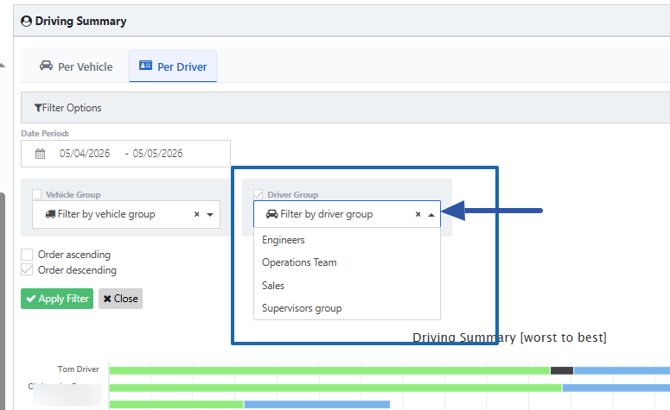
To create a groups of drivers go to Navigation Menu > Visibility > Setup > Drivers Groups
3. Vehicles Groups
You can filter the report by a group of vehicles. Select a drivers group from 1 of the available drivers group in your Transpoco account. This will allow you to compare vehicles in the same make/model, team, department, etc.
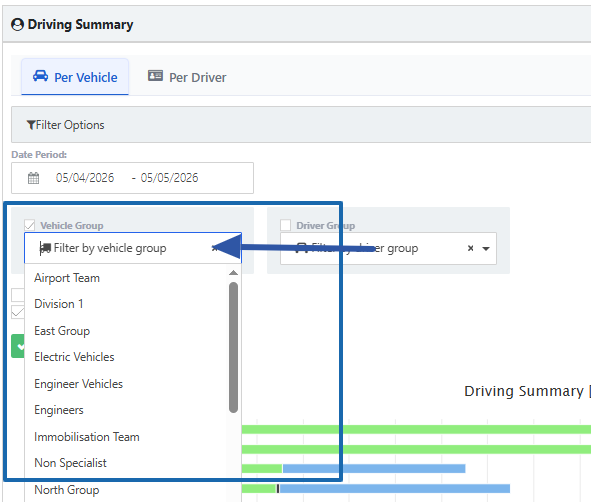
To create a groups of drivers go to Navigation Menu > Visibility > Setup > Vehicles Groups
Settings for the Driving Summary
The settings for the Driving Summary are located on the Navigation Menu under Driving Style.
The Settings page below includes events generated by an AI forward facing camera and an AI driver facing camera. In the example below, we have de-selected the events from cameras and the data from these events will not considered in the calculation of the Score.
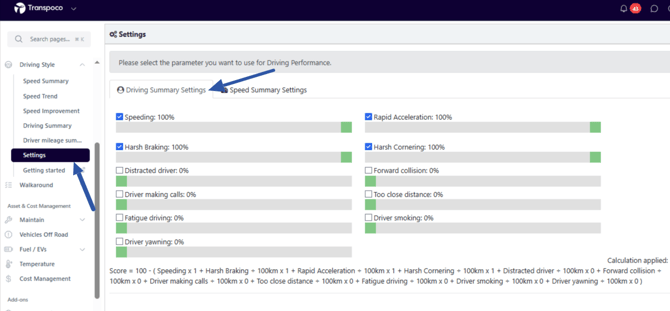
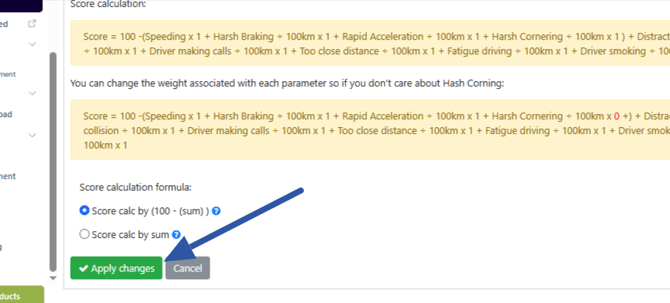
The weighting of each event can be adjusted, there is scale from 0% to 100% for each event.
After you make changes to the settings, click Apply Changes at the bottom of the page to apply the changes to the Driving Summary.
How to export the Driving Summary
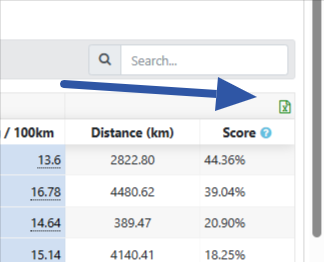
To export the data in the table view, click the spreadsheet icon located above Score column.
Driving Summary including events from AI cameras
The Driving Summary below includes the default events plus the events generated from driver facing and forward facing AI cameras. The score for each driver will be calculated based on all events.