![White Logo with transparent background.png]](https://www.transpoco.com/hs-fs/hubfs/White%20Logo%20with%20transparent%20background.png?height=40&name=White%20Logo%20with%20transparent%20background.png)
A new Transpoco accounts start with 1 profile; an administrator profile.
Access to your Transpoco account should be controlled to a limited number of administrator users with access to all modules
Administrator users can use the Profiles function to create customised user profiles in order to provide access to stakeholders within the organisation; from team managers to sustainability or health and safety managers. Administrator's can create levels of access by the relevant modules for each user type.
Creating a new profile involves:
1.Selecting the modules
2.Providing existing users with edit & assign access to the profile
1. Selecting the modules
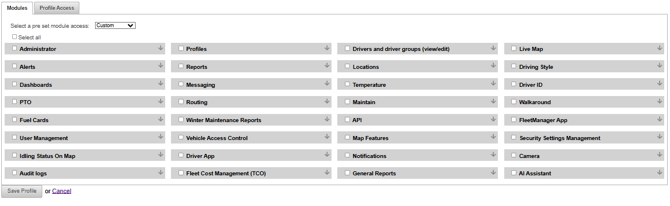
Here is a list of all available modules available in Transpoco. The modules available to you will depend on your package.
The system provides 3 pre set access profiles:
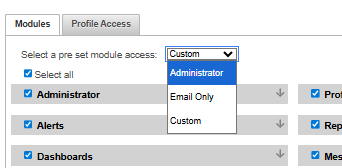
Administrator - Access to all available modules in the subscription for your account.
Email Only - No Access to any modules but the user assigned to this profile will be available to select as a recipient for alerts and/or scheduled reports.
Custom- The creator can choose modules from the list of modules. This function will allow administrators to create different levels of user profiles.
Modules:
- Administrator: Allows users to edit settings on all aspects of the platform.
- Alerts: Allows the user to view features on the Live Map such as the Heat Map or different map options.
- Dashboards: Allows the user to access the Dashboard module.
- PTO: Allows access to reports on PTO or Operating vehicles or plants.
- Fuel Cards: Allows users access to the Fuel Module.
- User Management: Allows the user to access the Users & Permissions settings.
- Idling Status on Map: Show vehicles idling on the live map - icon will appear orange.
- Audit Logs: Allows access to view records of changes in your Transpoco account.
- Profiles: Allows access to create, edit, assign and delete profiles.
- Reports: Allows users to run and download reports.
- Messaging: Allows users to message drivers directly from the platform.
- Routing: Allows access to create, edit, delete and report on routes.
- Winter Maintenance Reports: Allows access to reports on salt spreading by gritters.
- Vehicle Access Control:
- Driver App: Allows the user to access the Driver app for walkaround checklists module. The user can login to the Driver app using their login details for their Transpoco account.
- Vehicle access control: Alows the user to manage vehicles and vehicle groups.
- Fleet Cost Management (TCO): Allows access to the Total Cost of Ownership report which pulls costs from different modules of your Transpoco account (Fuel, Maintain, Vehicles) to provide a cost of ownership.
- Drivers and Drivers groups: Allows the user to access the Driver profiles and Driver Groups in the Settings menu.
- Locations: Allows users to create, edit, delete and report on locations.
- Temperature: Allows access to view features for Temperature probe reporting.
- Maintain: Allows the user to access the Maintain module.
- API: Allows acess to connect your Transpoco account with various software through our API.
- Map Features: Allows users access to the Fuel Module.
- Notifications: Allows users access to view Notifications. The Notifications feature is located on the navigation menu and the user can open unread notifications.
- Live Map: Allows users to view the live map.
- Driving Style: Allows access to driving style and driver alerts reports.
- Driver ID: Allows the user to access Driver details and reporting related to Driver ID.
- Routing: Allows access to create, edit, delete and report on routes.
- Walkaround: Allows the user to access the Walkaround module.
- Fuel Cards: Allows users access to the Fuel Module.
- Fleet Manager App: Allows access to login to the Transpoco Fleet Manager App. Users can login to the app using their login details for their account.
- Security Settings Management: Allows the user to access the Security Settings on the Settings menu.
- Camera: Allows the user to access the Camera module.
- Walkaround: Allows the user to access the Walkaround module.
- AI Assistant:
2. Profiles Access
After you select the permissions the final step is to provide other users with access to assign this profile. Click the Profile Access tab and select users from this organisation who will be able to assign this profile to new or existing users.
After you have selected the modules and select the users with profile access you will click Save Profile.