![White Logo with transparent background.png]](https://www.transpoco.com/hs-fs/hubfs/White%20Logo%20with%20transparent%20background.png?height=40&name=White%20Logo%20with%20transparent%20background.png)
Speed Summary Report
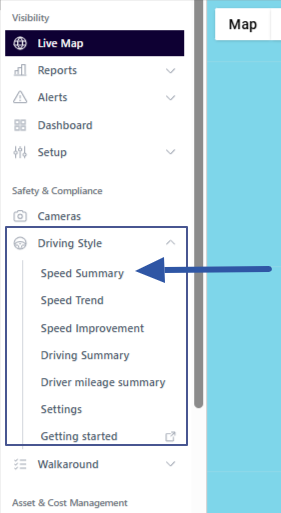
To find the Speed Summary report go to the Navigation menu > Safety & Compliance > Driving Style > Speed Summary
How to understand the Speed Summary
During a journey the GPS tracker in a vehicle can update an average every 15-20 seconds. Each update contains the speed and location of the vehicle.
Transpoco has an active database of road speed limits. We check the speed from each update against the speed limit of the road to identify speeding. The Speed Summary displays the percentage of vehicle speed updates which exceed the road speed limit.
The speeding data can also be attributed to a driver. We can attribute data to a driver if you are using a form of driver ID system installed by Transpoco or if you manually assign a vehicle registration to each driver in your Transoco account.
The Speed Summary is available in 2 views:
- Per vehicle
- Per Driver
1. Speed Summary - Per Vehicle
Let's use the Speed Summary from our demonstration account.
As we will explain below you can customise the time range and the vehicles included in the report. In this example, we selected the default time period which is the last 30 days and we will view data for all vehicles. There are 10 vehicles per page.
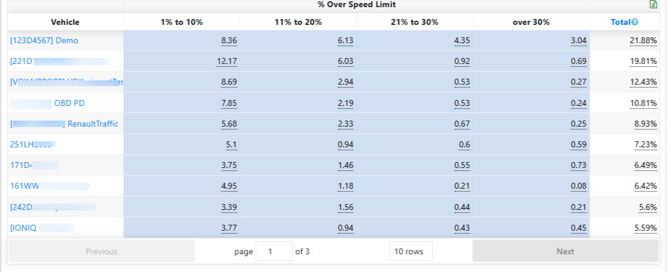
The report is sorted from worst to best. The vehicle with the description '123D4567' is the worst vehicle for speeding in the report below. Around 22% of all updates from the tracker in 123D4567 from the last 30 days indicated speeding over the road speed limit.
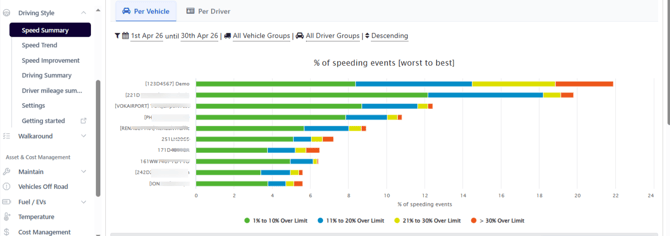
The speeding in the report is sorted by the percentage over the speed limit:
-
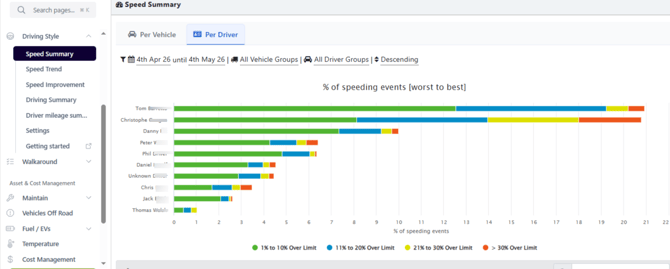
1%-10% over limit (green)
-
11% - 20% over limit (blue)
- 21% - 30% over limit (yellow)
- >30% over limit (orange)
In the bottom half of the Speed Summary report you can see the same data presented in a table view which can be exported.
2. Speed Summary - Per Driver
If you use our driver ID system in your vehicles then you will be able to view speeding by driver. Select the 'Per Driver' tab to view speeding data by driver. There are 10 drivers per page.
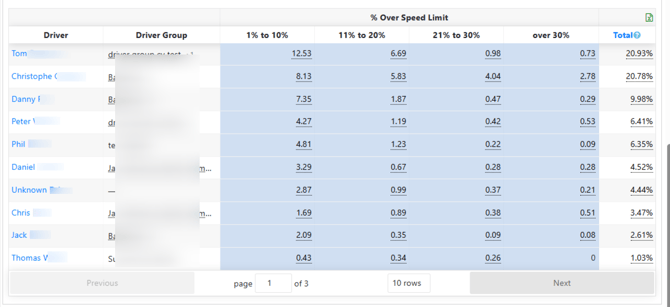
Here is an example of Speeding Summary report by driver from our demonstration account. The report is sorted from worst to best. As you can see, during the last 30 days, the driver 'Tom' is the worst driver for speeding. 21% of the speed updates attributed to the vehicles driven by 'Tom' during the last 30 days indicated speeding.
In the bottom half of the Speed Summary report you can see the same data presented in a table view which can be exported.
Filter Options
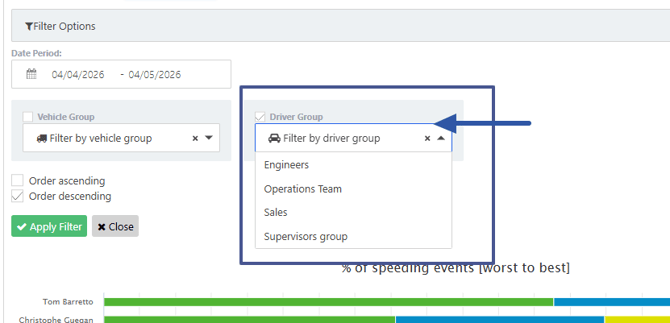
You can use the filters above Speed Summary report to change the date period, select a vehicles group or a drivers' group.
1.Date Period
By default the report shows speeding for the last 30 days. You select a customised date period.
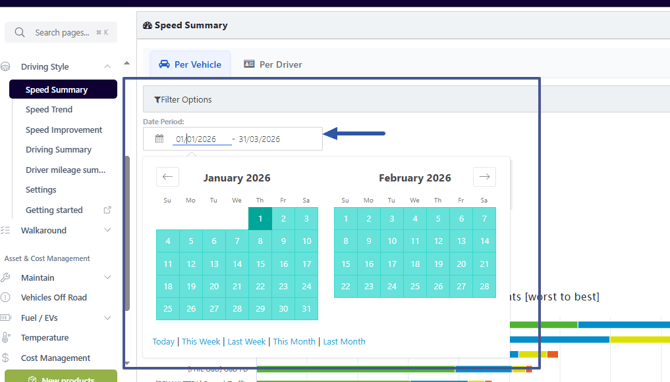
2. Vehicles' Group
By default the Speeding Summary per vehicle shows speeding for all vehicles. You can view the report for 1 group of vehicles from the list of available vehicles' groups in your account.
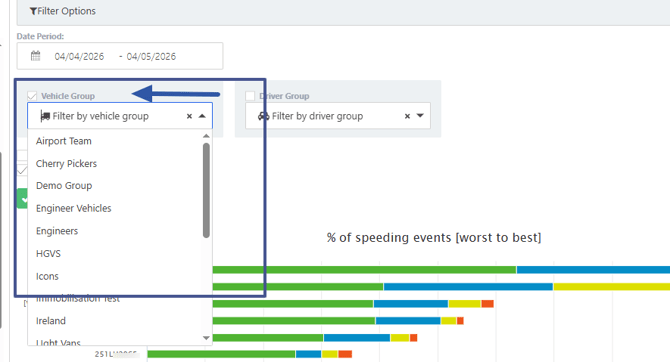
3. Drivers' Group
By default the Speeding Summary per Driver shows speeding for all drivers. You can view the report for 1 group of driver from the list of available drivers' groups in your account.
How to Export the Speed Summary Report
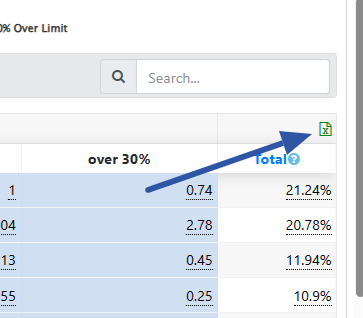
Click the spreadsheet icon above the Total column to download the data from the table.
How to view individual speeding events
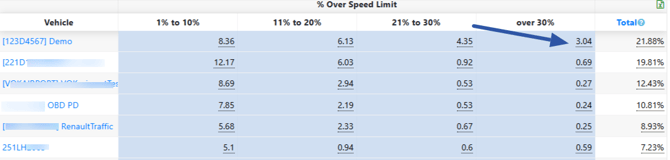
As the Speed Summary is generated from individual speeding events you can view the details of each event. In the table view, click any of the underlined percentages to view the speeding events. In the example below, we will view the details of the speeding events 30% over the road speed limit for vehicle 123D4567
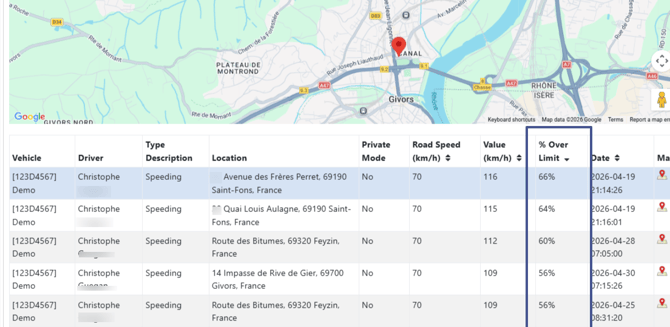
In the next screen you will see the details of each speeding event including the road speed limit and the actual speed. There is a column which displays the '% Over Limit'.
In the top half of the screen you can see the location of the speeding event on a map.
The settings for the Speed Summary report
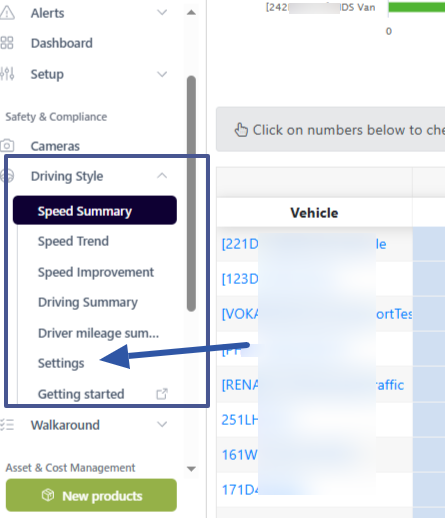
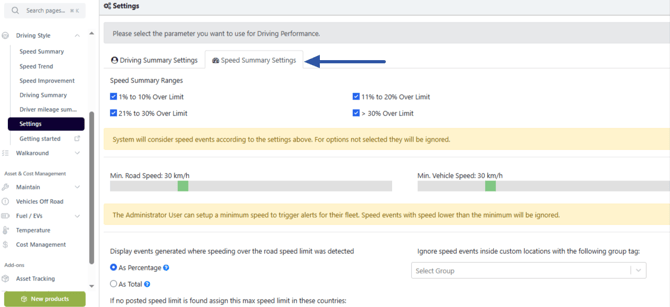
In the settings page you can hide 1 or more of the speed summary ranges by unticking the box beside each one.