![White Logo with transparent background.png]](https://www.transpoco.com/hs-fs/hubfs/White%20Logo%20with%20transparent%20background.png?height=40&name=White%20Logo%20with%20transparent%20background.png)
What are Notifications?
The Notifications section will act as a 'Hardware Health Check' page where you can see any issues with the hardware we installed. The notifications cover tracker and camera as well as driver ID. At the end of this article we list all of the notification event types.
To start, click the bell icon located in the top right corner of your Transpoco.
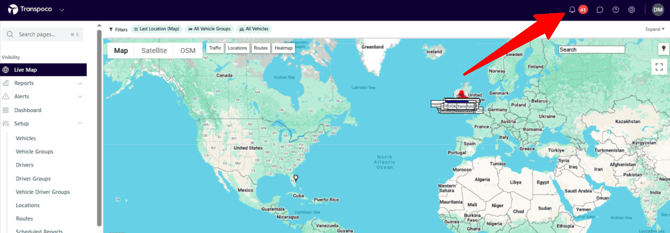
The number in the red bubble beside the bell icon indicates the number of open notifications. The example below displays 41 open notifications.

The Notifications page will list open notifications. Closed notifications will also appear unless they are hidden using filters.
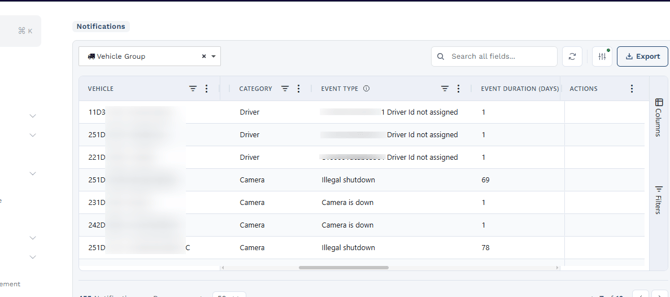
The 'Event Duration (days)' shows the number of days since the notification was triggered on the 'Date of Event'.
Columns
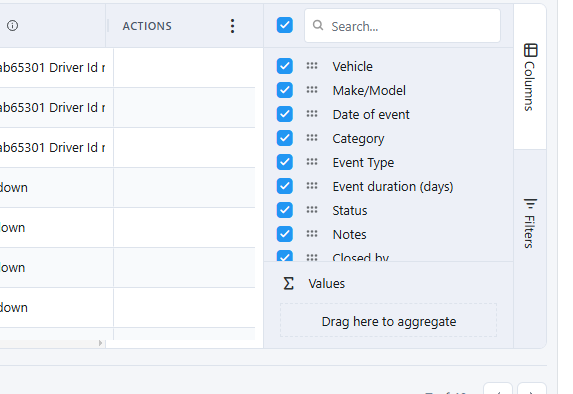
The columns in the Notifications table can be customised, columns can be added or removed. To customise the columns click the 'Column' tab to reveal all of the available columns. In the example below, all of the available columns have been selected. However, to hide a column untick the box beside the column name and apply the change.
Filters
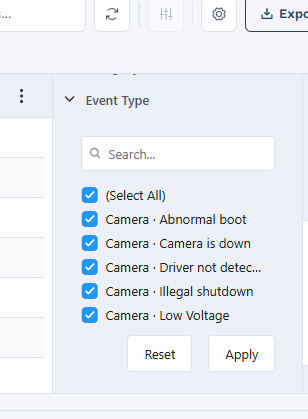
The Notifications table can be filtered using Filters. In the screenshot below you can see the available options. Click a filter to view the options.
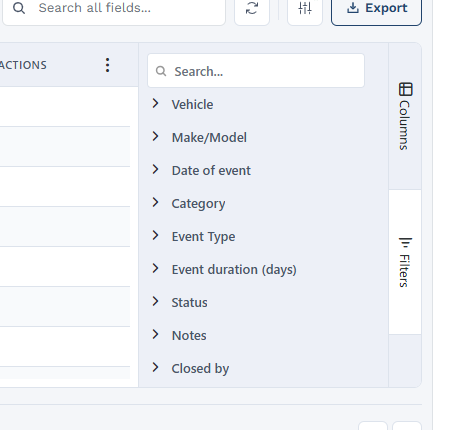
For example, if we click Event Type we can see all of the available notification event types. In the example below, all of the event types have been selected. However, if an alert type is not a priority you can untick an alert type to hide the cases of this event type from the report. After filters have been changed click 'Apply' to save and update the Notifications report.
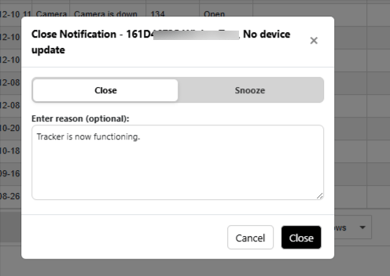
After you have fixed a notification, click the 'Close Notification' on the Actions column to close the notification. There is an option to enter notes during the process.
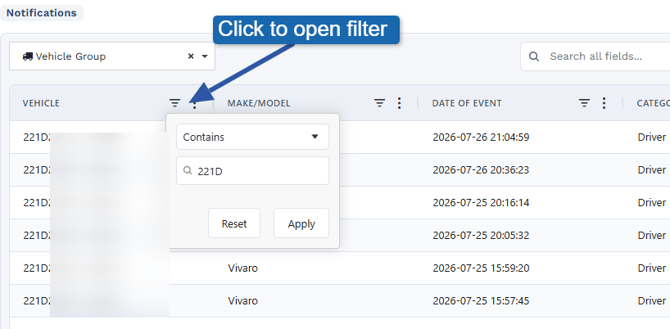
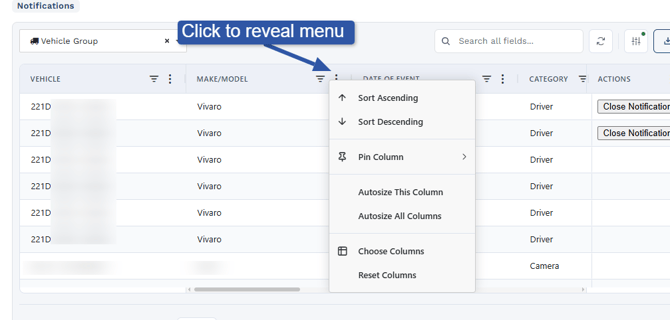
Columns & Filters
Above each column in the report there is a filter and menu.
Closing a Notification
To action or close an open notification click 'Close Notification' under the Actions column.
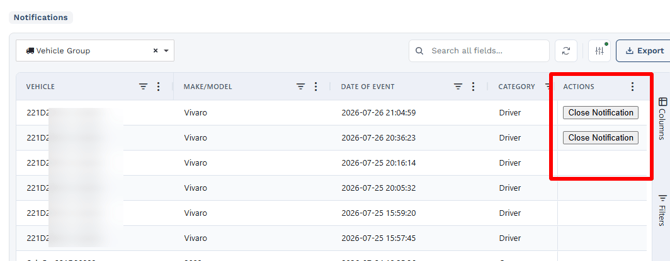
You can enter notes before you close the notification. You can explain how you will action this alert or if the issue has been resolved.
Notification Event Types & definitions:
|
Event Type |
Category |
Definition |
| Abnormal boot | Camera | The memory card is faulty or missing. |
| Camera is down | Camera |
The vehicle has been driven but the camera is not transmitting video to Transpoco's server. Camera stops sending updates for over 12h and the vehicle has been driven over 10km. |
| Driver not detected | Camera |
The AI driver facing camera cannot detect the driver. It is possible the camera is obscured. |
| Illegal shut down | Camera | The power to the camera has been disconnected. This notification is triggered after the power is restored to the camera. An illegal shutdown is similar to shutting down a laptop using the power button. |
| Low voltage | Camera | The voltage level from the vehicle has dropped below the required level to power the camera. |
| Media status failed | Camera | The memory card is faulty. |
| Memory Exception | Camera | The memory card is partially faulty. |
| Recording failed | Camera | When there is a video request that could not be retrieved. |
| Storage failure | Camera | The memory card is faulty. |
| Video lost | Camera | Camera is disconnected. |
| No device update | Tracker | When the tracker unit stops sending updates over 7 days |
| No signal | Tracker | The tracker stopped functioning, temporarily (336h or 14 days) or permanently, due to a lack of a GPS signal. |
| Driver ID not assigned | Driver |
When a driver ID has been used but has not been assigned to a driver. To resolve this issue assign the serial number of the driver to a driver and close the notification. |
| Non company driver ID used | Driver | When a driver ID has been used and is currently assigned to a driver from a different company (in cases where the customer has 2 or more Transpoco accounts). |