![White Logo with transparent background.png]](https://www.transpoco.com/hs-fs/hubfs/White%20Logo%20with%20transparent%20background.png?height=40&name=White%20Logo%20with%20transparent%20background.png)
This article will explain the steps to view the checklists submitted for a vehicle even if they were submitted by other drivers.
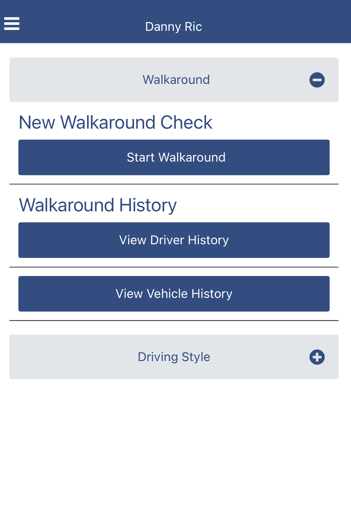
1. After you login select 'View Vehicle History'
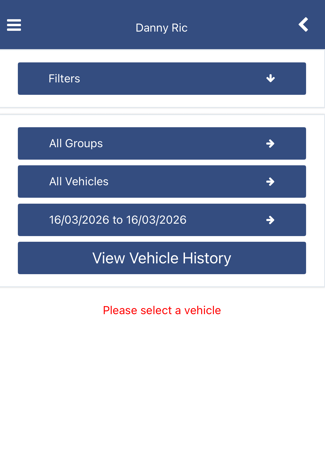
2. Click Filter to reveal the options. You will have to select a registration and a time period.
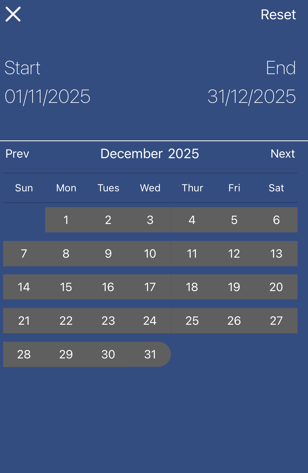
3. Click the timer filter to select a customised time period. By default, the time range will show today's date.
Use the calendar to select a start date and end date by highlighting the dates.
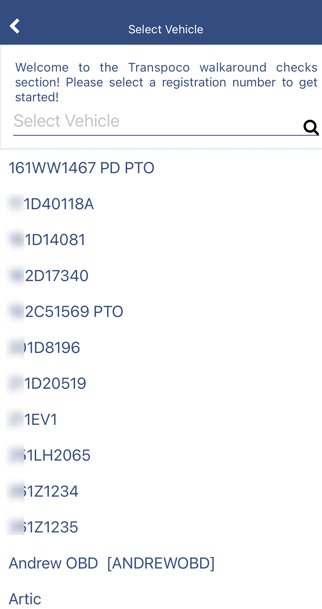
4. Select a vehicle registration from the list of vehicle registrations in your account.
5. After you select a time period and vehicle registration click the 'View Vehicle History' button to see the checklists.
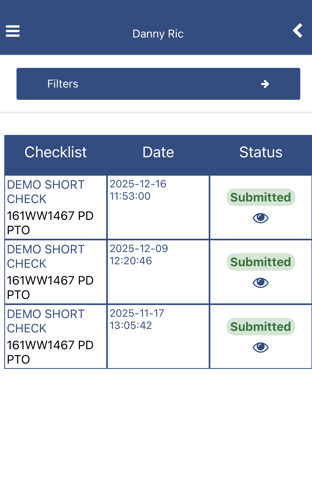
Tap on All Groups if you want to select a vehicle group.
Select the vehicle group from the list, scrolling down or typing in all or part of the group name in the text box if required (the list will filter automatically).
Note: You do not need to select a vehicle group first, but for a large fleet this makes it easier to find a specific vehicle.
Note: The paper plane icon denotes a checklist that has not yet been submitted.
If there is a checklist that needs submitting, follow the instructions for View Driver History if you were the driver, or contact the relevant driver to request they submit the checklist.